Search This Blog

Sunday, 30 December 2012

Deactivate Facebook account.

Here you learn how to delete, remove or deactivate your facebook account.

Step:

1. Sign in Your Account.

2. Just click on right side top security button and click on Account Settings.


3. Click on left side Security tab. That will be display following types windows.


4 Than click on Deactivate you account. That's will be you can follow step on your account deactivate.


That's it. If you like than please share please.

Thank's for reading this blog.


Friday, 28 December 2012

Install Un-Compatible software.

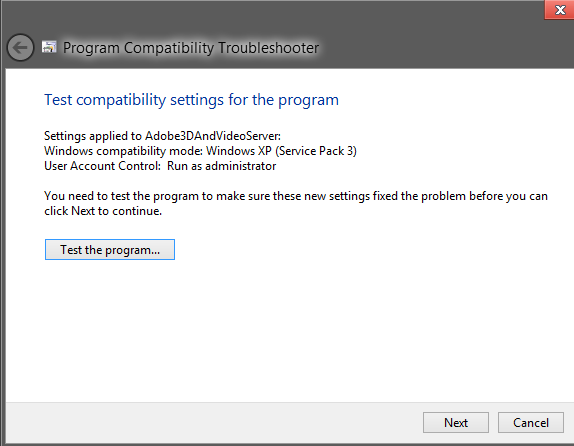
Here, you can learn how to install that's type software that's say you this software is not install in this os, its use only oldest os like  windows 7 to xp. Here Windows 7 and 8 gives most one advantage featurs that's Troubleshot Compatibility.  Here following step to use you your software run on Windows 7 and 8.

Step:

1. Right click on your setup and install.exe file

2. Click on Troubleshoot Compatibility.

3.Than Click on Troubleshoot Program.


4. Click on that's two chekbox, look follow.


5. That select Windows Xp 32 or other vice 64 bit os.


6. Then click on Test Program and click on next on that windows and save that setting. After your software install check your program success if yes than close Compatibility windows if not than again same process on your install software icon on desktop or profram file in C drive.

That's it. If you like than please share it. 

Thank's for reading this blog. 

Wednesday, 26 December 2012

Speed up your PC without any software

Here, you can learn how to speed up your pc as a look like when you format you pc than after format hows it works . Some time your pc is working very slow, so here don't wory you can speed up your pc. Here following some important step to speed up your pc.

Step:

1. First clin up your system.
     
     - Right click on C: drive.
     
     - Click on Property
     
     - Than under General tab you can see Disk Cleanup.
     
     - Clean all types file.


2.Second Optimize your C drive.

    - Right click on C: drive

    - Click on Property.

    - Than under Tools  tab you can select Optimize.


3. Third one Disable un-usefull programm in start up.

   - Open Run(Windows key+r).

   -Type msconfig.msc.
  
  - Click on Startup tab.

  - Than uncheck that's programs that's you no need after computer start.

      Note: Don't disable system software and Antivirus program.

   - Click on Apply.

4. Install any latest antivirus like MICROSOFT SECURITY ESSENTIAL. This antivirus is very power full again Virus and it's don't harm of your system speed.


That's it. If you like it please share this post


Thank's for reading this blog.

Monday, 24 December 2012

Create new partition without any software and bootable Dvd

When you purchase new computer or Laptop that company give you default size of C partition is 100 GB and up then you need to create a new one partition. because sum time you need to format C drive and you lose your data, So here you learn how to create a new one partition without any boot able DVD and Any Software. Just follow following software be carefully.

Step:

1. Right click on you My Computer Icon.

2. Click On Manage.

3. Extend Storage tab and click on Disk Management.


4.Than here you which drive on you want to create new partition click on them.

5. Right click on that partition and click on Shrink Volume. That's windows look like following.


5.You see in third one option that you enter how many give you size of new partition in MB.

6.Click on Shrink.

That's it. I hope you done. If like this post please share it.


Thank's for reading this blog

Saturday, 22 December 2012

Remove Desktop watermark on Windows 8

REMOVE YOUR DESKTOP WATERMARK PERMANENTLY  ON WINDOWS 8


Here two software to remove your Windows 8 desktop watermark remove. You can download any one software and remove watermark.


1. Windows 8 patchar.    Download(81kb)

2. MY WCP Watermark editor.     Download(554kb)


That's it. I Hope you solve your query

Thank's for reading this blog.

Add Windows Defender in Right Click on Windows 8

To better security provide the newest version of Windows Defender like as a Microsoft Security Essential  Defender are provide same security as Essential. But in windows 8 you can't run Microsoft Security Essential.And you cant saw Windows Defender scan option. But don't worry here follow following step and you can add Windows Defender to your Right Click Context Menu.

Step:

1. Open Run. Press Windows key+r

2. Type regedit.


3. Navigate key HKEY_CLASSES_ROOT\folder\shell.

4. Create a new sub key under Shell and name it WindowsDefender


5.Now, click on WindowsDefender key, and on the right-hand side create a String Value named Icon and set %ProgramFiles%\\Windows Defender\\EppManifest.dll as its value.


6. Create another String Value key named MUIVerb and set Scan with Windows Defender as its value data. Please note that you can replace Scan with Windows Defender text with anything that you want to see in the context menu.

7. Create a key named Command under WindowsDefender. Click on Command key, on the right-hand side of Command key, double-click on Default key and then set the following command as its value data.

C:\Program Files\Windows Defender\MpCmdRun.exe” -scan -scantype 3 -SignatureUpdate -file %1


That't it you done.

OUTPUT


That's it. If you like this Post then please share it

Thank's for reading this blog


Friday, 21 December 2012

Understanding DNS Using DOS Investigation Utilities

Step:

1.Open DOS(cmd). Press windows key+r and type cmd and click on ok.

2.Enter this command nslookup.


The nslookup command resolves the default DNS server's FQDN name.

3.When you enter the command nslookup[IP address], you will be able to see the FQDN name of the IP address you just entered.


4.Enter exit to leave nslookup.

That's it. if you like then please share it.

Thank's for reading this blog